

Extension Configuration
Configure your Codeflash project settings through the extension’s configuration page in the sidebar.Configuration Page
The Codeflash extension provides a configuration interface in the sidebar where you can view and update your project’spyproject.toml settings.
1
Open Codeflash Sidebar
Click the Codeflash icon in the VS Code activity bar (left sidebar) to open the extension panel. Make sure you’re on the Optimization tab.
2
Open Kebab Menu
In the Optimization tab, look for the three vertical dots icon (
⋮) next to the Optimize button. Click it to open the menu.3
Select Project Config
From the dropdown menu, click “Project Config” to open the configuration interface.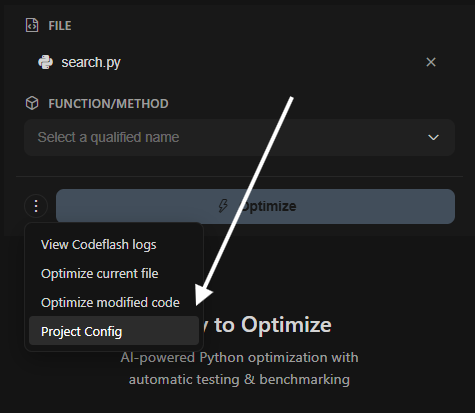
4
Update Settings
Use the configuration interface to modify your
pyproject.toml settings. Changes are saved directly to your project’s configuration file.The configuration page also appears automatically when:
- The extension detects your project needs configuration
- You need to update existing settings
- The extension detects configuration issues
Configuration is project-specific — All settings are stored in your project’s
pyproject.toml file, not in VS Code settings. This ensures your configuration is version-controlled and shared with your team.Available Configuration Options
The extension’s configuration page allows you to configure the following settings in yourpyproject.toml:
Module Root
Specifies which directory contains your Python source code to optimize.- Setting:
module-root - Example:
"src"or"." - Purpose: Tells Codeflash where to find functions to optimize
Tests Root
Specifies where your test files are located.- Setting:
tests-root - Example:
"tests"or"test" - Purpose: Tells Codeflash where to find and create test files
Code Formatter
Specifies which code formatter to use for optimized code.- Setting:
formatter-cmds - Options:
black,ruff, or custom commands - Purpose: Ensures optimized code matches your project’s style
Additional Settings
The configuration page also supports otherpyproject.toml settings such as:
git-remote— Git repository remote URLignore-paths— Paths to exclude from optimizationoverride-fixtures— Custom test fixturesbenchmarks-root— Directory for benchmark tests
Manual Configuration
You can also editpyproject.toml directly if you prefer:
- Open
pyproject.tomlin your project root - Locate or create the
[tool.codeflash]section - Add or modify configuration options
pyproject.toml options, see the Configuration Reference.
Python Interpreter Selection
The extension uses the Python interpreter selected in VS Code (via the Microsoft Python extension). To change the interpreter:- Press
Ctrl+Shift+P/Cmd+Shift+P - Type “Python: Select Interpreter”
- Choose your project’s Python environment
The extension automatically reloads when you change the Python interpreter. Make sure Codeflash is installed in the selected environment.
Configuration Validation
The extension validates your configuration and shows helpful error messages if:pyproject.tomlis missing or has syntax errors- Required settings are not configured
- Paths specified don’t exist
- Settings conflict with each other
Next Steps
Features
Learn about extension features
Troubleshooting
Fix common issues
Project Configuration
Complete pyproject.toml reference